|
Technical Issues - Ocean Optics Support Note: Click here for related material Rapid-scan (including FTIR) spectrometers are controlled through ActiveX EXE servers like Ocean2.exe which can be run standalone for setup/testing and via MEASURE/Scantraq BASIC and Excel VBA. FTG Software supports Ocean Optics spectrometers through 32-bit OmniDriver. OceanView is not required. The FilmStar (Scantraq) setup file installs Ocean2.exe for OmniDriver 2.56 (32-bit, 29 May 2018). When running the OmniDriver setup, select Redistributable version and WinUSB drivers.
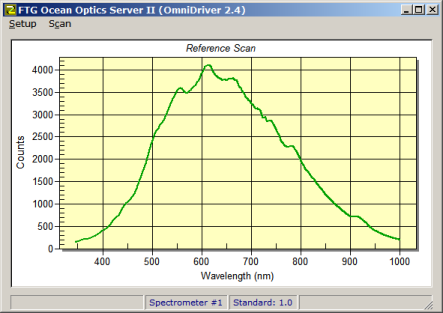
If you do not wish to update Ocean1.exe, select Complete FilmStar installation instead of Update current FilmStar programs and DO NOT CHECK Ocean Optics Server. If Ocean2.exe is currently working, it is not necessary to update OmniDriver. Please contact us with any questions. The FTG Ocean Optics Server (FTG OOS) is an ActiveX EXE which provides an interface to OmniDriver. The advantage of this approach is that the server can be run standalone for testing and then run invisibly from FilmStar. Since the FTG OOS processes data (converts to %R or %T) it can be used in DESIGN as well as MEASURE. An FTG HASP enabled for MEASURE or Scantraq is required. When installing FilmStar (Setup32.exe), select PE Lambda 2-950 (Mpe983.exe) and Ocean Optics Server in the Select Components dialog. Other versions of MEASURE (Scantraq) do not support ActiveX servers.
This installs Ocean2.exe as well as corresponding FilmStar BASIC macros. It also installs Scan Method OOI2 Trns.scw which references the BASIC macros.
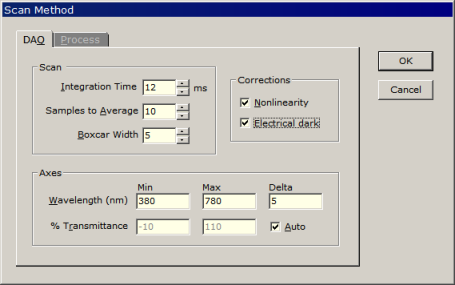
To help determine values for an FTG OOI Scan Method, run SpectraSuite to quickly determine Integration Time and other factors.
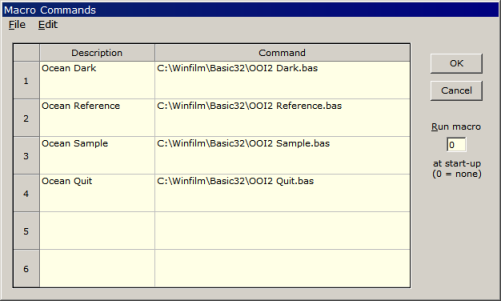
In DESIGN the Macro Commands dialog assigns scan functions to macro buttons:
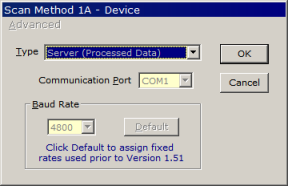
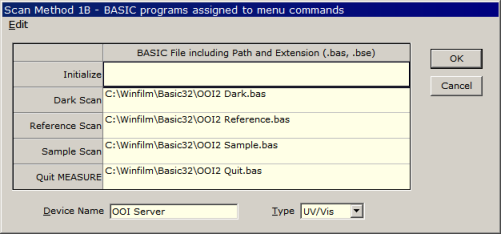
You could use the same Macro Commands in MEASURE, but it is better to assign macros in the Scan Method 1B dialog shown below. Dark and Reference scans are triggered by Setup menu commands, while the Sample scan is assigned to the Scan button. The Scan Method stores the required macros.
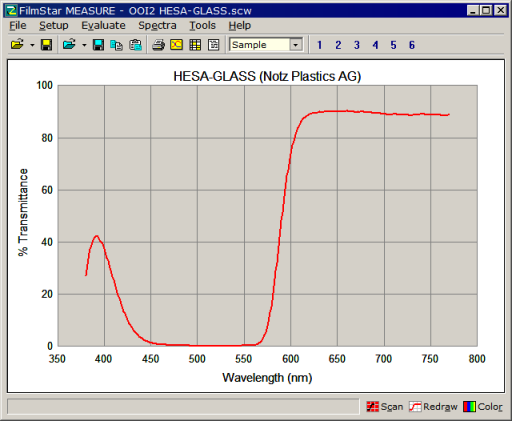
Ultimately, Ocean Optics scanning appears seamlessly built into DESIGN or MEASURE:
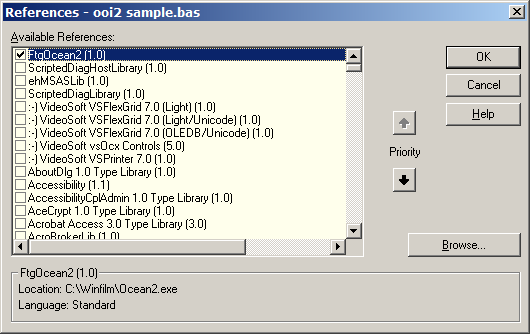
If Ocean2.exe standalone mode works but MEASURE does not, it is probable that ActiveX references have been changed or lost. In that case merely re-establish the reference in each BASIC program listed in the Scan Method 1B dialog, i.e. BASIC programs assigned to menu commands.
|

Copyright © 2023 FTG Software Associates
Last updated on
January 31, 2023