|
Technical Issues - Saving Multiple Spectra While it is typical to save a single
calculated or measured spectrum in a unique file, this becomes unwieldy when
there are many associated spectra. MEASURE examples: 1. Life tests on solar
mirrors, 2. Uniformity on large optics, 3. Multiple samples from a coating
run, 3. Unusual spectral requirements. DESIGN examples: 1. Random error analysis, 2. Angular variations.
This page refers to FilmStar BASIC (#2, #6, #7) code and Excel VBA code (#8). BASIC files MultCalcXL.bas, MultCalcXLC.bas, are found in C:\Winfilm\Basic32. Template MultCalc0.xls is in c:\Winfilm\Workbook while MultCalcXL.xlsm (Excel 2007/2010 macro-enabled workbook) is found in C:\Winfilm\Excel 2007. Users who cannot get these to work should contact FTG Software for assistance. 1. DESIGN/MEASURE Spectra
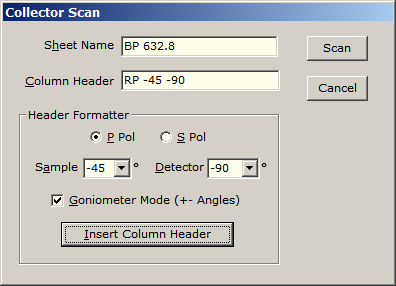
Collector
When measuring a single optic over a temperature range, or multiple optics of the same type, ignore the Formatter and type appropriate Column Headers. If there are many measurements, BASIC's Collect command provides further options including full or partial automation, as in the following ARTA/TAMS control code. It is assumed here that we've already performed P and S reference scans. SetInit ' Initialize ARTA/TAMS accessory SetDetector 0 ' Transmittance Const sht$ = "Highpass" ' Assign sheet name For ang = 0 To 60 Step 5 ' Load P-pol reference data DataType = 3: FileOpen "RefP.dat": DataType = 1 SetSample ang ' ARTA/TAMS BASIC code SetPolarizer "P": Scan ' Clear Collector when run the first time Collect sht$, "TP " & cStr(ang),(ang = 0) ' Load S-pol reference data DataType = 3: FileOpen "RefS.dat": DataType = 1 SetPolarizer "S": Scan Collect sht$, "TS " & cStr(ang) If ang > 0 Then SetSample -ang: Scan Collect sht$, "TS " & cStr(-ang) SetPolarizer "P": Scan Collect sht$, "TP " & cStr(-ang) End If Next ang Currently using ARTA
or TAMS with PerkinElmer UV Winlab? Consider the advantages in directly creating XLS files;
compare with Winlab's arcane and tortuous file structure. Contact FTG for an
online presentation via ZOOM. The above code is easily modified for
Pike autosamplers and
similar accessories.
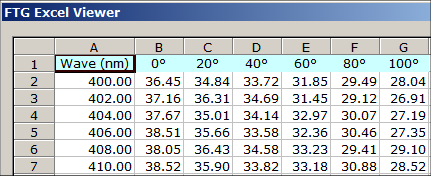
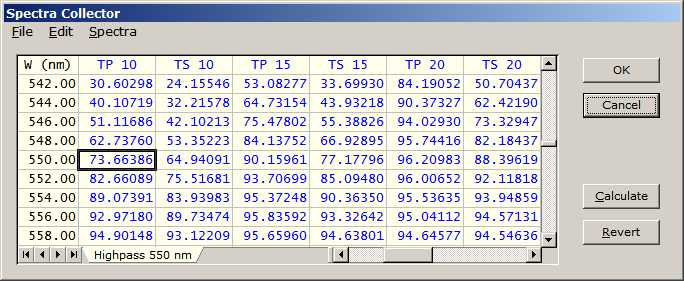
The blue color indicates calculated data. In MEASURE black indicates normalized measured spectra and green (in UMA version) indicates raw data. Row (1,2,3...) and column header (A,B,C...) visibility is adjusted in File.. Configuration.. <Grid Style>.
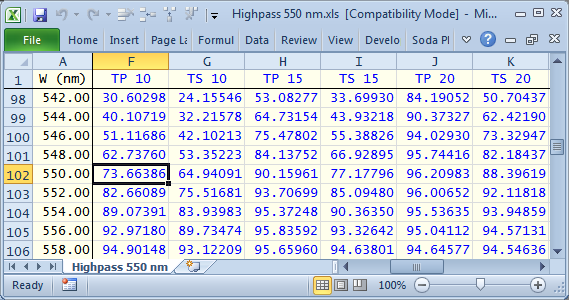
Spectra are saved in Excel XLS or XLSX format. There is virtually no restriction on the number of data points and number of worksheet windows.
The Spectra Collector automatically
plots multiple FSPlot curves as shown below. With the FSPlot Module
open, select one or more columns in the Collector followed by
Spectra.. Plot Column <F4>. In the results shown below we
applied Spectra.. Average P and S to the Collector data shown
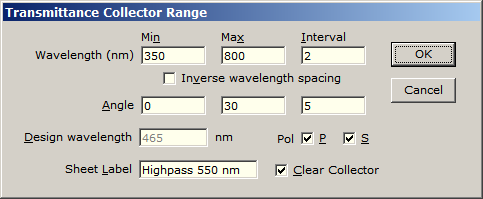
above. 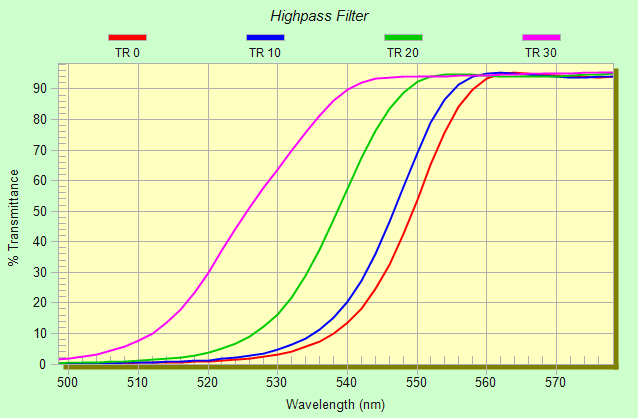 Sub Collect is also available in DESIGN as in the following example. Of course, it is possible to vary other design parameters, not just angle and polarization.
Further information relating to
multiple scans can be
found here. Suggestion: After running the above,
try Spectra.. Average P and S in the Collector. Have no idea how to get this BASIC
program to work? Contact FTG for an
online introduction. 2.
General Method using BASIC XL Functions
An example of a nonstandard spectrum is one
resulting from angular dispersion where sample and detector angles
are varied as a function of wavelength. This requires BASIC XL
functions as discussed in a MEASURE BASIC macro on a
separate page. Another example is
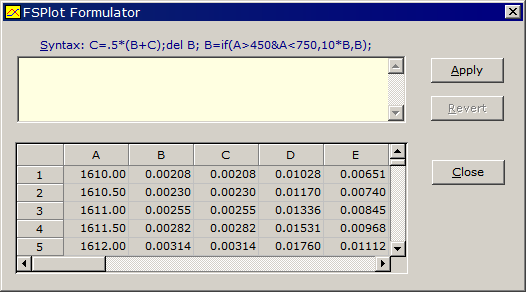
given here. 3. DESIGN Contour mode Fixed output, easy to use; utilizes Excel or Workbook Another DESIGN method is to select Contour mode in Setup.. Parameters. Evaluate and copy spectra to the clipboard (Spectra.. Copy Data <Ctrl+C>) and paste into Excel or the FilmStar Workbook (Excel 5.0/95 only, so not recommended). Be sure to select Contour Data.. Matrix in Spectra.. Format Options. This method only applies when each column corresponds to a different angle of incidence. 4. FSPlot data storage The next method uses FSPlot, works with MEASURE as well as DESIGN, and does not require BASIC. Using the Plot button, add spectra to FSPlot then click Data.. Save As to save the spectra in Excel-compatible CSV format. Alternatively, click Data.. Copy <Shift+F11> and paste into Excel. For users with occasional requirements, this simple technique should be sufficient. Data can be viewed in the Formulator.
The FSPlot method can be automated as follows:
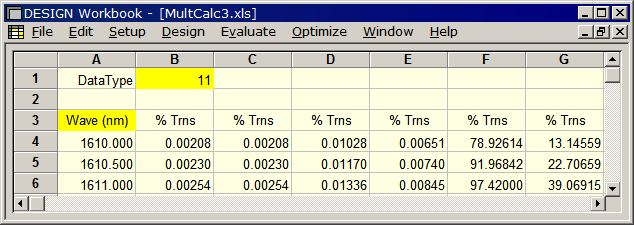
Select 0-100% scale or risk losing data. FSPlot only saves data within Graph Axes range. Click here for further discussion of this topic. Click here for a built-in method (MEASURE only) and here for a BASIC method (DESIGN and MEASURE) for labeling multiple plots. 5. FilmStar Workbook used manually The next method relies on the ability of the FilmStar Workbook to add multiple spectra as it is activated. In the following DataType = 11 (1+2+8) indicates formatting (0-100%), looping, and one data column (%T instead of %R and %T) in DESIGN. While this can be automated with FilmStar BASIC or with a Workbook macro, we think Method #6 (below) is a better use of BASIC skills.
6. FilmStar Workbook with BASIC (MultCalcXL.bas)
CSV is not internationally invariant. Files saved
in European format (comma decimal point) are unreadable elsewhere. In addition, CSV does not
support formatting.
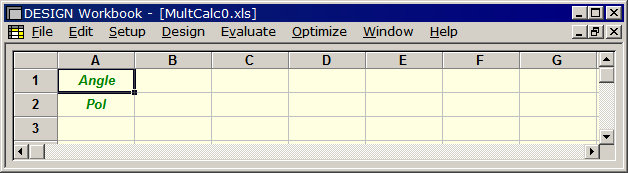
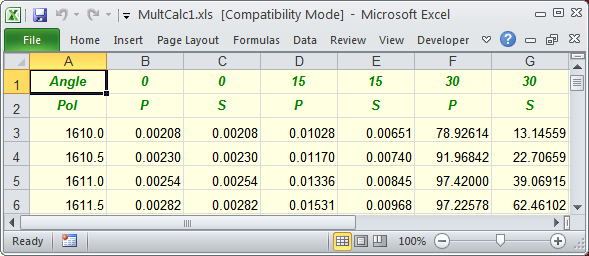
FilmStar can directly create single-sheet Excel files. In BASIC program MultCalcXL.bas a pre-formatted worksheet MultCalc0.xls provides a template. This template can be created in DESIGN or in Excel 5.0/95 format (supported by all newer Excel releases).
The filled-in Workbook is saved with a new file
name. Marking the template as read-only is recommended to prevent
unwanted modification. 7. DESIGN export to Excel (MultCalcXLC.bas)
Use this instead of Method #5 (above)
when more than 256
columns are required (Excel 2007 or newer), if XLSX format is required, or
if the Excel workbook includes multiple sheets, charts, etc. 8.
Excel import from DESIGN using VBA (MultCalcXL.xlsm) Excel aficionados might prefer to work in Excel
and have Excel retrieve spectra from DESIGN or MEASURE.
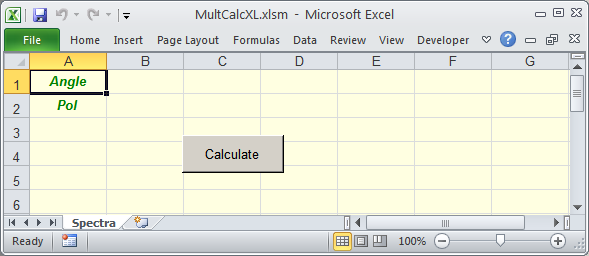
MultCalcXL.xlsm VBA code comments: Pause .2 is a puzzle! Without a delay, perhaps a message box, the program does not run correctly (ID Module error). This remains an anomaly. Note the line shapes(1).cut for deleting the Calculate button.
Advanced users: what if the final Excel model requires macros? There could be two code modules, say Module1 (imports spectra from FilmStar) and Module2 (subsequent analysis). Module1 can be selectively deleted by adding the following code as the last step. This procedure is also useful when Excel 2007 or newer is not available.
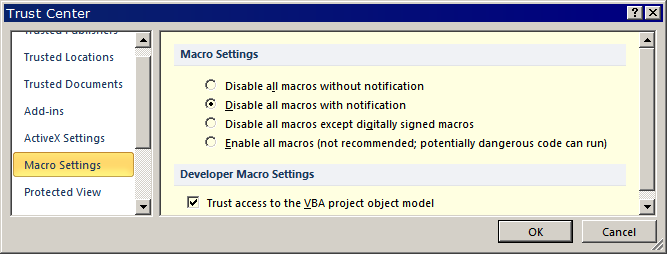
Depending on Excel version, it may be necessary to adjust VBA security settings as shown here for Excel 2010 (Developer.. Macro Security.. Trust Center). Menu sequence and terminology will vary in different Office versions. If trust is not enabled, the error message upon running the above code is 'Programmatic access to Visual Basic Project is not trusted' or similar.
Should DESIGN and MEASURE BASIC run Excel (#5), or should Excel VBA run DESIGN and MEASURE (#6)? While each approach has merits, there are advantages in FilmStar BASIC control. Excel is a programming language and Workbooks can easily (unless precautions are taken) be wrecked. On the other hand, complex and user-friendly data entry dialogs are easier to create in Excel VBA. Advanced FilmStar BASIC users can 'borrow' dialogs from Excel. Click here for an explanation. 9. Transferring Excel spectra to FSPlot Users may find that Excel charts are fairly complex, especially if there are a variety of wavelength ranges. A
simple alternative is to copy data to the clipboard and transfer to the
FSPlot Module.
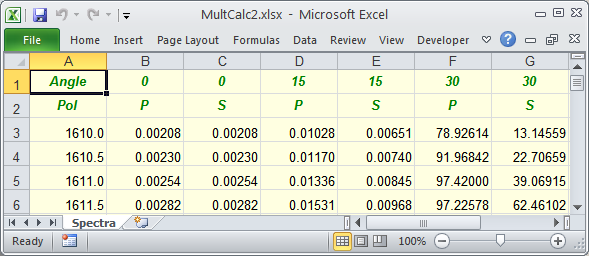
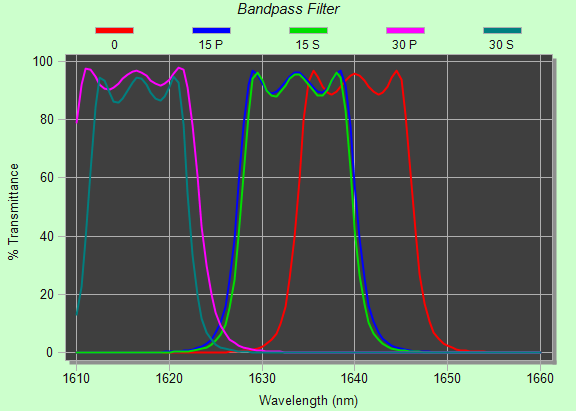
Data and headers were copied from MultCalc2.xlsx; the second 0 deg column was deleted and data limited to the 0-30 deg range. FSPlot's Bitmap/Gradient mode was used to set the border color to light green. 10. Learn by doing The only way to master FilmStar BASIC or VBA is to develop code and/or modify existing code. Excel VBA books, online tutorials, and short courses are widely available. Here are some exercises:
Don't forget to first back up any files that you will modify. |

Copyright © 2023 FTG Software Associates
Last updated on
October 11, 2023